Welcome to Ailife React template!
We would like to thank you for choosing our template -
Ailife.
It’s built with latest version of Next.js. Ailife is a creative and unique CV/resume template for developer, designer, programmer, freelancer, writer, lawyer, musician, trainer, photographer or any other professions & Can be used for Personal Pages. This template contains a single page and also multiple pages with a clean & smooth design. Each element of this design is fully creative. The HTML files are fully customizable and all elements are in groups and can easily identify by the group name as well.
Requirements
There are system requirements in order to install and
setup Ailife template and its components properly. Make
sure that you are installed
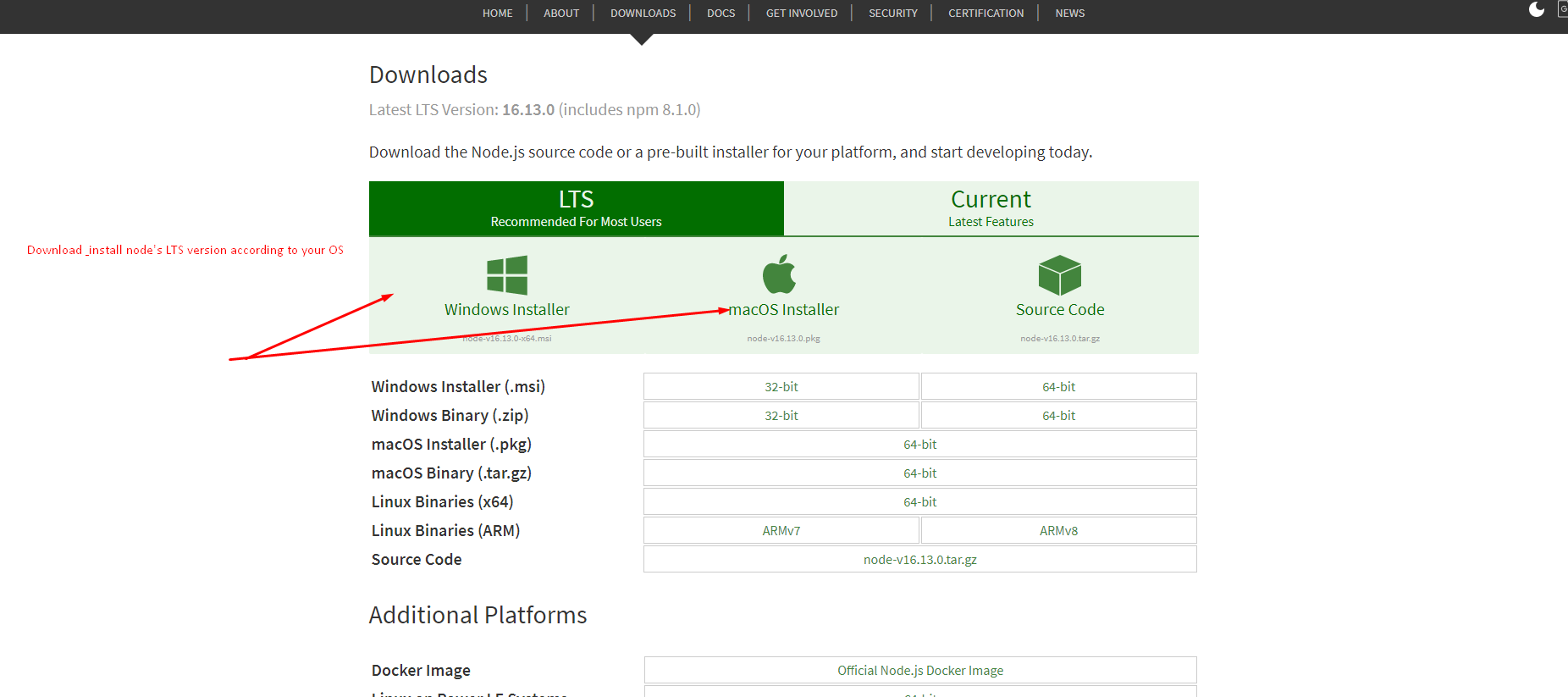
Node.js version~14.6.0 or newer .
Recommended node
If you are familiar to Yarn !
First , install Yarn globally
-
Open you command prompt
npm install --global yarn
Check installation :
yarn --version
What's Included
After purchasing Ailife template on themeforest.net
with your themeforest account, go to your Download
page. You can download Ailife template. Ailife template
package which contains the following files:
The contents of the template package downloaded from
themeforest:
Ailife.zip - An Installable next.js
react template zip file. this file you need to upload to
react.
Documentation - This folder contains
what you are reading now :)
Run Next.js Template
Please follow the instructions how you can run react
template on your hosting:
For local host
-
Open you command prompt
yarn install #or
npm install
yarn run dev #or
npm run dev (will start the dev server)
For locally build
-
Open you command prompt
yarn build #or
npm run build (will build locally and
generate public directory)
Just upload build folder on your server
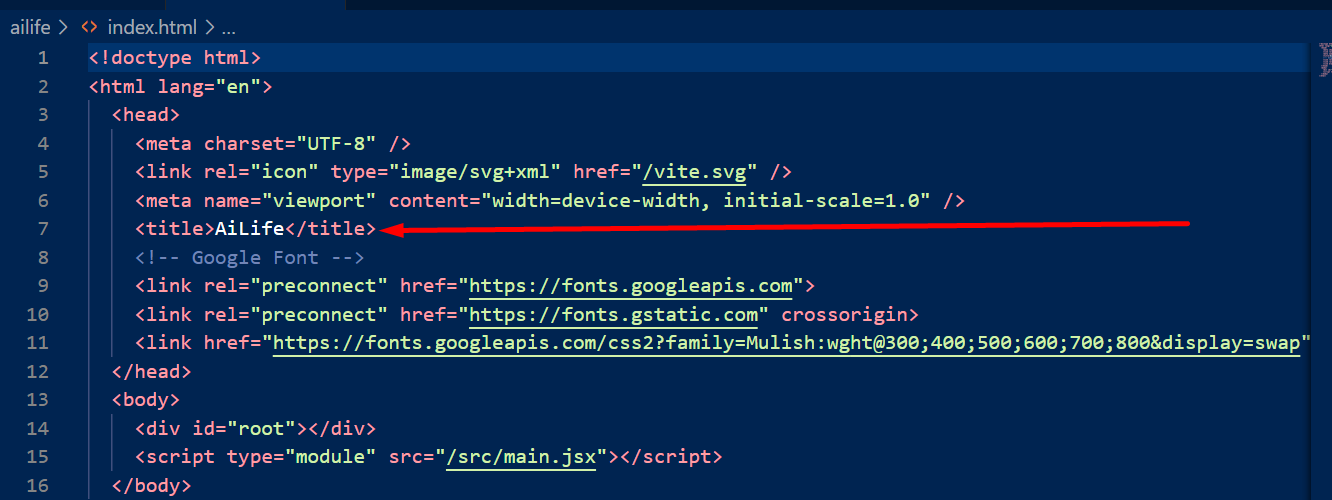
Change Site Title, Favicon and
To change your Site title and Favicon open Ailife folder
in your editor and go to the location by following
screenshot which are given bellow.
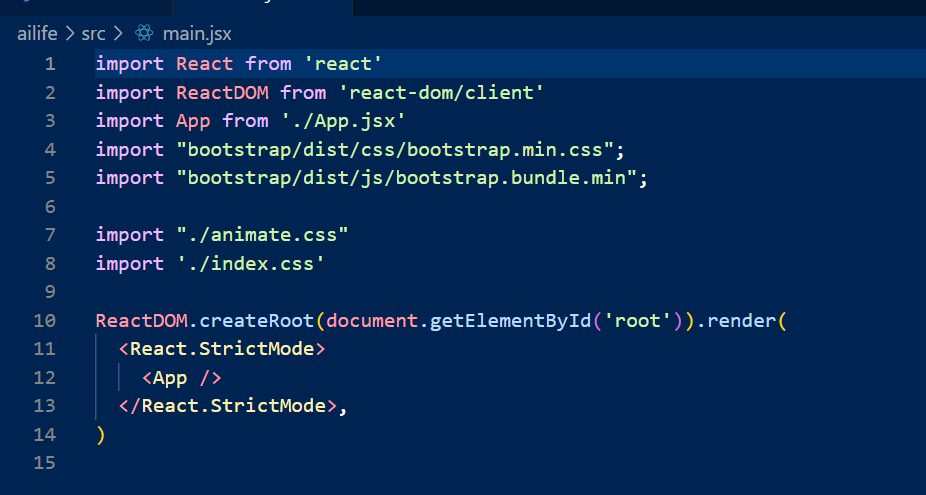
main.jsx and index.html is root file & every components/page will
render in this file . And we can use meta ,
link , title etc. in head tag
for every pages .
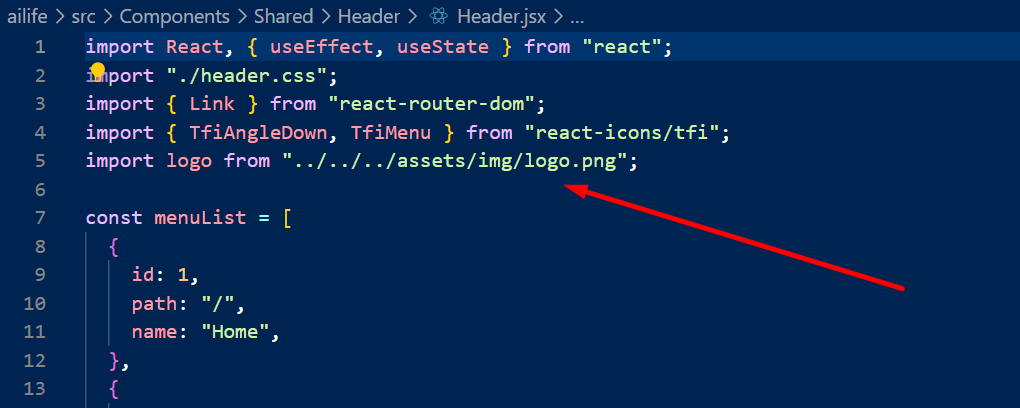
Change Logo
To change logo and customize other header data do the
following:
From the project folder go to
public images
there we have all the images to use
From the project folder go to
src ComponentsHeaderHeader.jsxOpen the header where you want to use
Then change the logo as well as you can also change
other data
In Footer we can change logo by the same way.
To change your logo following screenshot which are given
bellow.
By folllowing this screenshot you can change your Logo
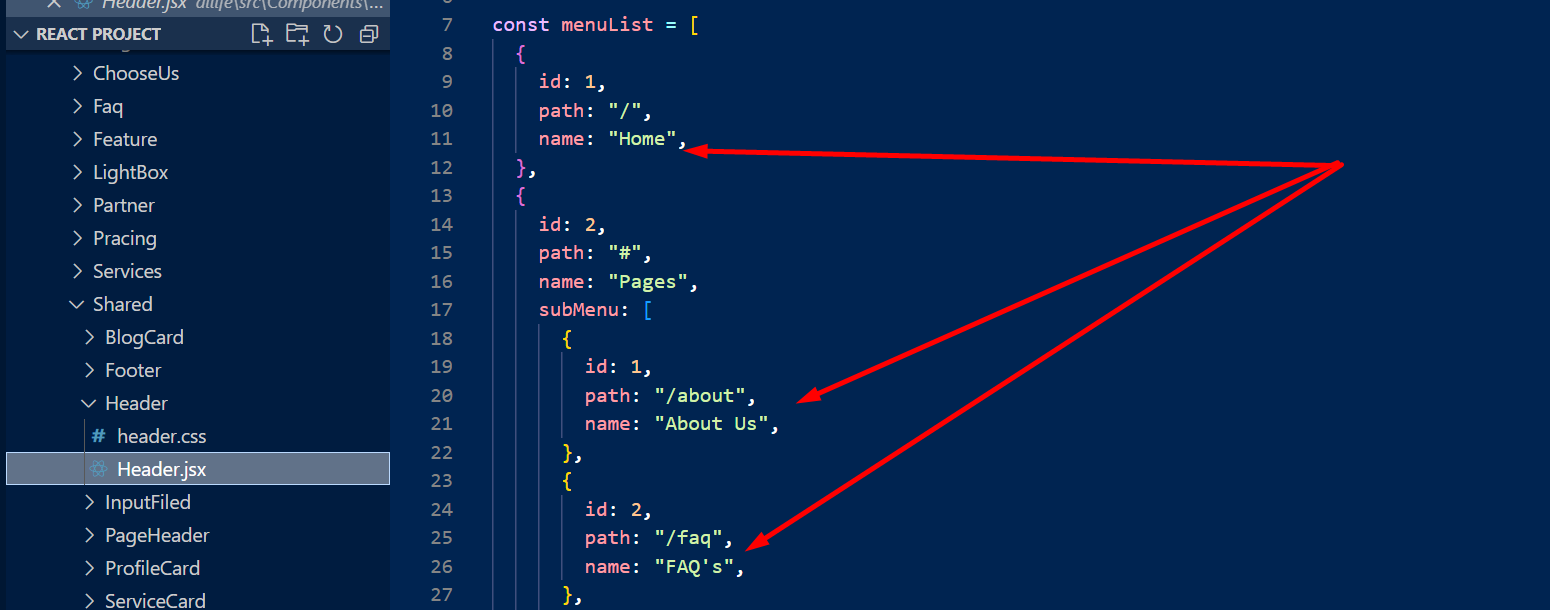
Customize Menu
To customize menu do the following:
From the project folder go to
src components
>HeaderHeader.jsx
Create new menu option in a li tag
and always use li before end
ul tag .
And for routing next.js provide us
Link tag, import it and use it like below
screenshots
Then in Link >href ="" use
page's folder name
Then customize the menu data following the screenshot
Use same way to change menu data for mobile devices
Customize the menu
Customize Components
To create a new page do the following:
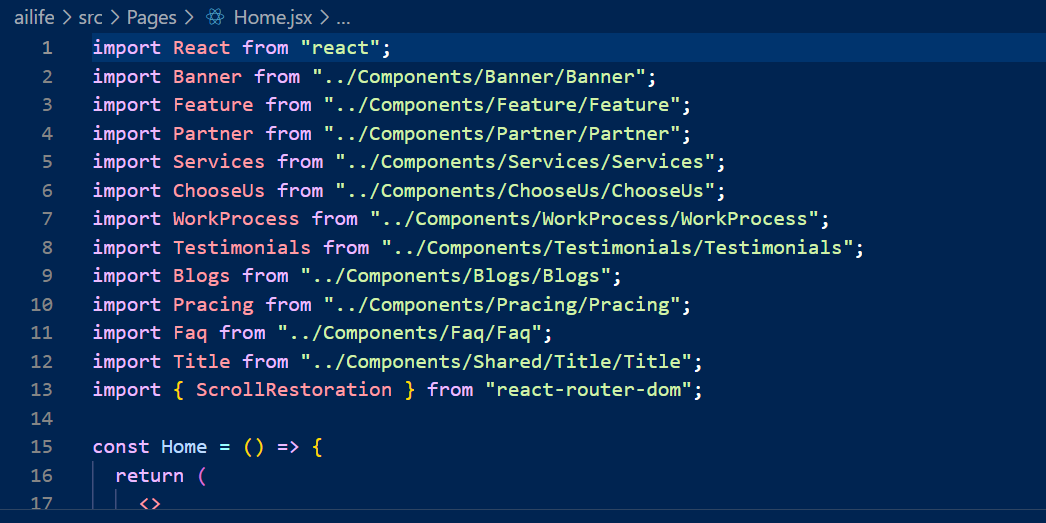
There is all components you have to import from
src components
From the project folder go to
src app
folder and import component where you want to
customize
page.js / page.jsx
is the main page there will stay all components .
To solve it follow screenshots which are given below
Customize Components
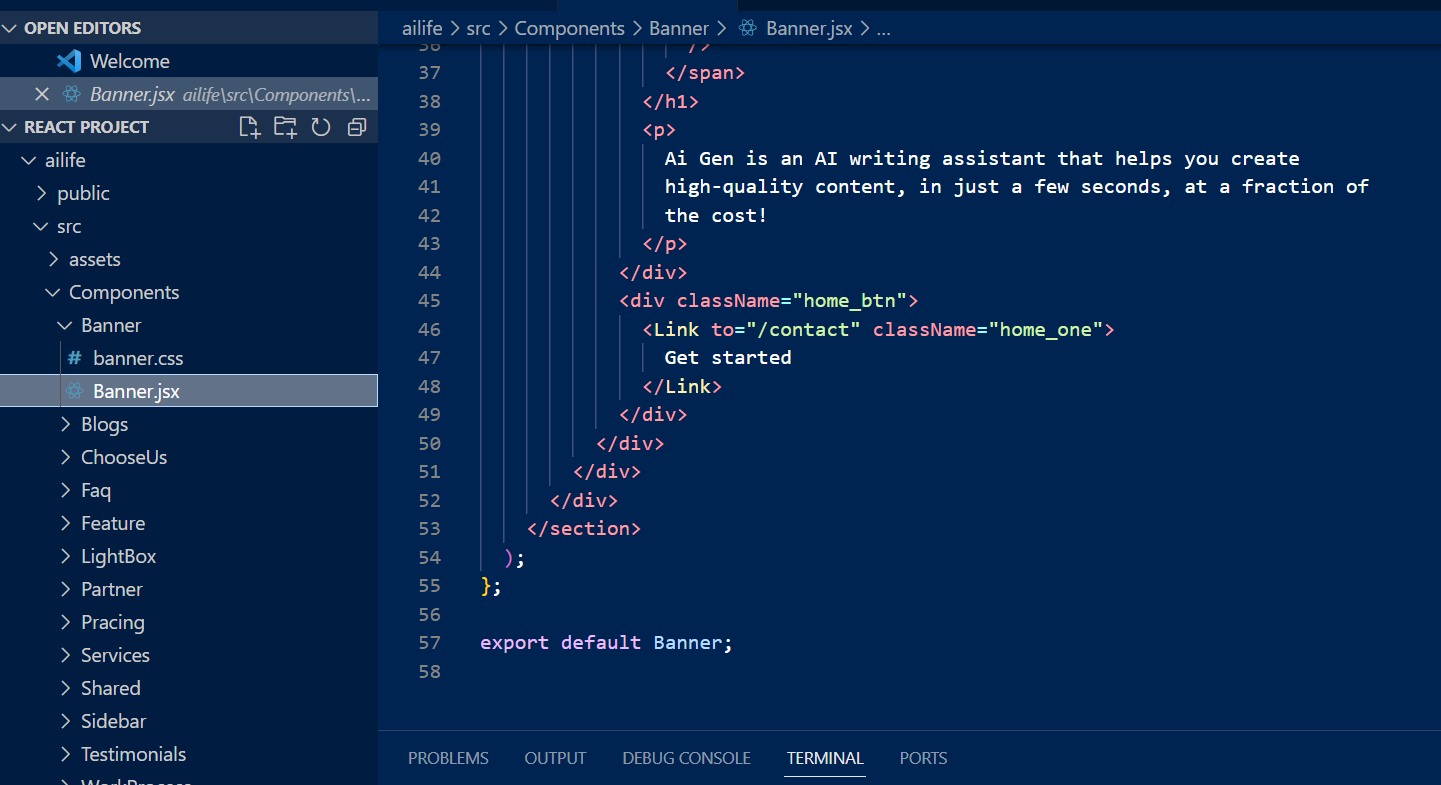
Create a new section
To create a new page do the following:
From the project folder go to
src ComponentsThen create [your-section-name].js/jsx file
Inner the file create a function and write your code
Then return your all data as a jsx code
At last you have to export this function where you put
your data
then import that file to
app folder and
select folder where you want to put
Create a new section
Create a new page
To create a new page do the following:
From the project folder go to
src appThen create a folder & use your page nameThen create page.js/jsx file
Inner the file create a function and write your code
Then return your all data as a jsx code
At last you have to export this function where you put
your data
Now you have to link in the menu or where you want to
go to this page by clicking
to routing your page use your pages folder name .
To done this process follow the screenshots which are
given bellow.
Create a new page
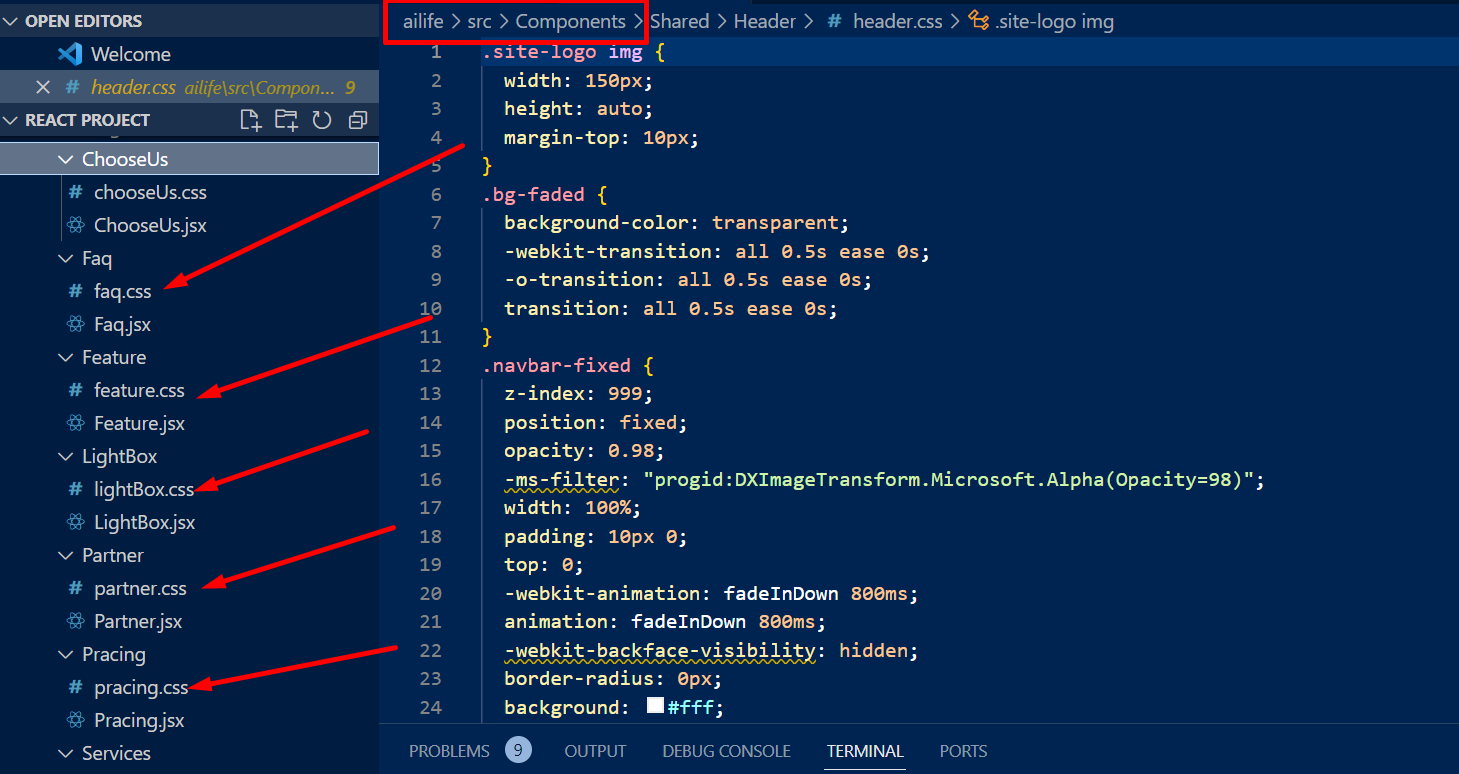
Change Styles
To change Global style
src styles style.css
Change Global Color Options Setting
Change Log
Our team never stops Improving, bug fixes, and
improvements. See What's New. We recommend you to read the
changelog for every update.